

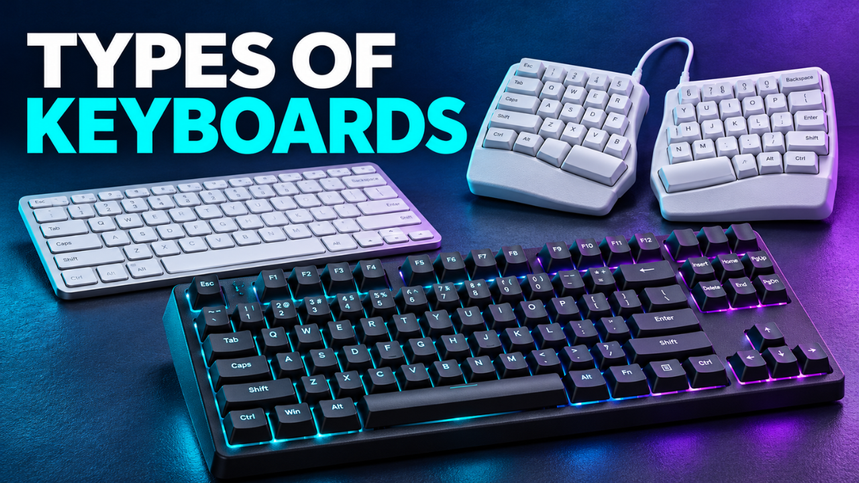
A keyboard can look perfect on a desk and still annoy you every time you use it. Maybe the keys feel mushy. Perhaps the clicking carries through every work call. Or you bought a tiny model and discovered how often you need the arrow keys.
Understanding the different types of keyboards helps you avoid those everyday frustrations. The useful differences involve how the keys work, how much space the board takes up, and how it connects.
Those categories overlap. A keyboard can be mechanical, wireless, compact, and designed for gaming at the same time. Once you separate those labels, choosing becomes much easier.
Table of Contents
- Membrane Keyboards: Simple and Affordable
- Mechanical Keyboards: More Choice Under Your Fingers
- Scissor-Switch and Chiclet Keyboards
- Optical and Magnetic Keyboards
- Ergonomic and Split Keyboards
- Full-Size and Compact Keyboard Layouts
- Wired and Wireless Keyboards
- Gaming, Multimedia, and Specialist Keyboards
- Virtual and Projection Keyboards
- Choosing a Keyboard That Fits Your Day
Membrane Keyboards: Simple and Affordable
Many inexpensive desktop keyboards use a rubber-dome membrane design. Pressing a key compresses a flexible dome and closes an electrical contact underneath. Releasing it lets the dome spring back.
These keyboards usually offer a soft feel and a relatively low price. For checking email, completing homework, or using a shared family computer, that may be everything you need.
The compromise often appears during longer typing sessions. Some models feel vague or require a firm press before a letter registers.
Still, “membrane” doesn’t automatically mean bad. A well-made membrane keyboard can be more pleasant than a poorly built mechanical one. Judge the actual keys rather than dismissing the whole category.
Mechanical Keyboards: More Choice Under Your Fingers
A traditional mechanical keyboard uses an individual switch under each key, typically containing a spring and metal contacts. The attraction is choice: different switches produce different resistance, movement, and feedback.
Linear switches move smoothly without a deliberate bump. Tactile switches give you a distinct bump when pressing a key, providing physical feedback as you type. Clicky switches add an audible click alongside tactile feedback. Choose between them according to the feedback you find comfortable.
Imagine writing late at night while someone sleeps nearby. A loud clicky board could become irritating quickly. A keyboard with silent switches might suit that situation better.
Mechanical doesn’t always mean loud, and buying one won’t automatically improve your typing speed.
Some models also offer hot-swappable switches, allowing compatible replacements without soldering. Check the specifications carefully: removable keycaps alone don’t mean the switches are removable.
I’d pay attention to comfort and sound before decorative lighting. You notice both with every sentence.
Scissor-Switch and Chiclet Keyboards
If you like the shallow, controlled feel of many laptop keyboards, look at scissor-switch models.
A small, crossed mechanism stabilizes each key as it moves. These designs commonly retain a rubber dome and membrane underneath, so scissor switches aren’t an entirely separate electrical technology. Their low height allows short key travel.
They’re worth considering when you want a slim external keyboard that feels familiar after years of laptop use.
You’ll also see the word chiclet. In modern keyboard descriptions, it usually refers to flat, separated keys with gaps between them. That describes the appearance; it doesn’t guarantee a particular switch mechanism.
Try the spacebar and larger keys before buying. Their stability can reveal more than the product photos.
Optical and Magnetic Keyboards
Optical keyboards detect keypresses using light. Traditional mechanical switches register presses through electrical contacts; optical designs use a change in a light path instead.
Magnetic keyboards use magnets and sensors. Hall effect is one magnetic sensing technology, and supported keyboards can offer adjustable actuation: you choose how far a key travels before it registers.
That flexibility can suit a gamer who wants sensitive movement keys but deeper presses for ordinary typing.
Here’s the thing: a shorter activation distance isn’t automatically better. If keys register too easily, resting your fingers on them may produce unwanted inputs.
Features depend on the keyboard and its software. Don’t assume every optical or magnetic model offers identical adjustments, or that its switches accept standard mechanical replacements.
Ergonomic and Split Keyboards
Ergonomic keyboards feature specially designed key layouts and shapes that help keep your hands and wrists in a more natural, comfortable position while typing. Some use a curved, divided key area within one body. Others separate into two pieces that you can position independently.
Designs vary considerably. A curved keyframe and built-in palm support are features of some ergonomic boards, rather than requirements for every model.
Expect an adjustment period, especially if you sometimes reach across the keyboard with the “wrong” hand.
Before choosing one, consider your whole setup. Desk height, chair position, and where you place the mouse all affect how comfortable typing feels. A different keyboard shape is only one part of that setup.
Full-Size and Compact Keyboard Layouts
Keyboard size changes which keys you can reach directly. Going smaller gives your mouse more room, but removed keys usually shift onto shortcuts or function layers.
| Layout | What you generally get | Practical fit |
|---|---|---|
| Full-size | Letters, function row, navigation keys, and number pad | Frequent spreadsheet or number entry |
| 96% or 1800-style | Most full-size functions packed closer together | Number-pad access on a narrower board |
| Tenkeyless, or TKL | Most standard keys without the number pad | Everyday work with extra mouse space |
| 75% | Function row and arrows in a compact arrangement | A smaller desk without losing those essentials |
| 65% | Letters, arrows, and some navigation keys | Compact setups that still need arrows |
| 60% | Mostly the main typing area | Users comfortable with shortcut layers |
Exact layouts differ between models, especially around navigation keys. Check a clear photograph rather than relying on the percentage alone.
A 60% keyboard can look wonderfully tidy until editing a document requires combinations you haven’t learned.
Also, QWERTY, AZERTY, and Dvorak describe letter arrangements. They’re separate from the keyboard’s size and switch technology.
Wired and Wireless Keyboards
A wired keyboard connects through a cable, usually USB. It avoids battery management and gives a permanent desk setup one less thing to charge.
Wireless keyboards commonly connect through Bluetooth or a dedicated USB receiver. Some support both methods and let you switch between several paired devices.
Bluetooth can be convenient for moving between a laptop and tablet without occupying a USB port. A receiver-based connection needs a compatible receiver and an available port.
For gaming, compare the performance of the specific connection mode. “Wireless” alone doesn’t tell you how responsive a keyboard is.
Travel adds another consideration: weight. A compact metal mechanical board may occupy little space while still feeling heavy in your bag. Slim or folding keyboards can be easier to carry, though unusual spacing may take practice.
Gaming, Multimedia, and Specialist Keyboards
“Gaming keyboard” describes an intended use rather than one switch technology. These boards may include programmable keys, gaming profiles, backlighting, or support for registering several simultaneous presses.
That last feature matters when a game asks you to move, sprint, and trigger another action together. Look for clear rollover specifications covering the combinations you actually use.
Lighting can help you locate keys in a dark room, but colorful effects tell you little about typing quality.
Multimedia keyboards emphasize controls such as volume, playback, and mute. Those shortcuts can be useful on an ordinary work desk, too.
Other specialist options include one-handed gaming keypads, separate number pads, and large-print keyboards. Their value comes from solving a particular problem, whether that’s limited desk space, repeated commands, or easier-to-read legends.
Virtual and Projection Keyboards
Virtual keyboards appear on a screen rather than providing physical keys. You can enter text through touch, a mouse, or supported alternative controls. Windows’ On-Screen Keyboard, for example, doesn’t require a touchscreen.
They’re useful for occasional input, accessibility needs, or getting through a temporary physical keyboard problem.
Projection keyboards take a different approach: a small device projects a keyboard image onto a surface and detects finger movements over it.
The idea is clever, but you don’t get physical key edges or normal key travel. If you plan to write long documents, think carefully about whether tapping a flat surface suits you.
Choosing a Keyboard That Fits Your Day
Start with the small annoyances in your current setup. Missing a number pad? Look at full-size or compact layouts that retain one. Dislike deep key travel? Try scissor-switch or low-profile options. Need less noise? Listen to the exact model, including its spacebar.
Check operating-system compatibility, regional symbols, and any software needed for remapping. A keyboard that types normally on your computer may still have customization features that require another supported system.
If possible, type a paragraph before buying. Use punctuation, shortcuts, and the keys you reach for most.
The best keyboard is the one that feels comfortable, keeps useful controls within reach, and fits your daily routine. Choose around those needs, and the label on the box becomes much less important.